

Understanding Remote MCP Servers
Remote MCP servers function similarly to local MCP servers but are hosted on the internet rather than your local machine. They expose tools, prompts, and resources that Claude can use to perform tasks on your behalf. These servers can integrate with various services such as project management tools, documentation systems, code repositories, and any other API-enabled service. The key advantage of remote MCP servers is their accessibility. Unlike local servers that require installation and configuration on each device, remote servers are available from any MCP client with an internet connection. This makes them ideal for web-based AI applications, integrations that emphasize ease of use, and services that require server-side processing or authentication.What are Custom Connectors?
Custom Connectors serve as the bridge between Claude and remote MCP servers. They allow you to connect Claude directly to the tools and data sources that matter most to your workflows, enabling Claude to operate within your favorite software and draw insights from the complete context of your external tools. With Custom Connectors, you can:- Connect Claude to existing remote MCP servers provided by third-party developers
- Build your own remote MCP servers to connect with any tool
Connecting to a Remote MCP Server
The process of connecting Claude to a remote MCP server involves adding a Custom Connector through the Claude interface. This establishes a secure connection between Claude and your chosen remote server.Navigate to Connector Settings
Open Claude Desktop or Claude in your browser, then navigate to the settings page:
- Desktop: Either use the keyboard shortcut
Ctrl+Commaor click the top-left menu icon , hover over “File”, and select “Settings”
 - Browser: Either use the keyboard shortcut
⌘⇧,(macOS) or click on your profile icon, and select “Settings” from the menu
Add a Custom Connector
In the Connectors section, click the “Add” button at the top-right of the window, then select “Add custom connector” from the dropdown. This begins the connection process. To follow along, copy/paste the URL below: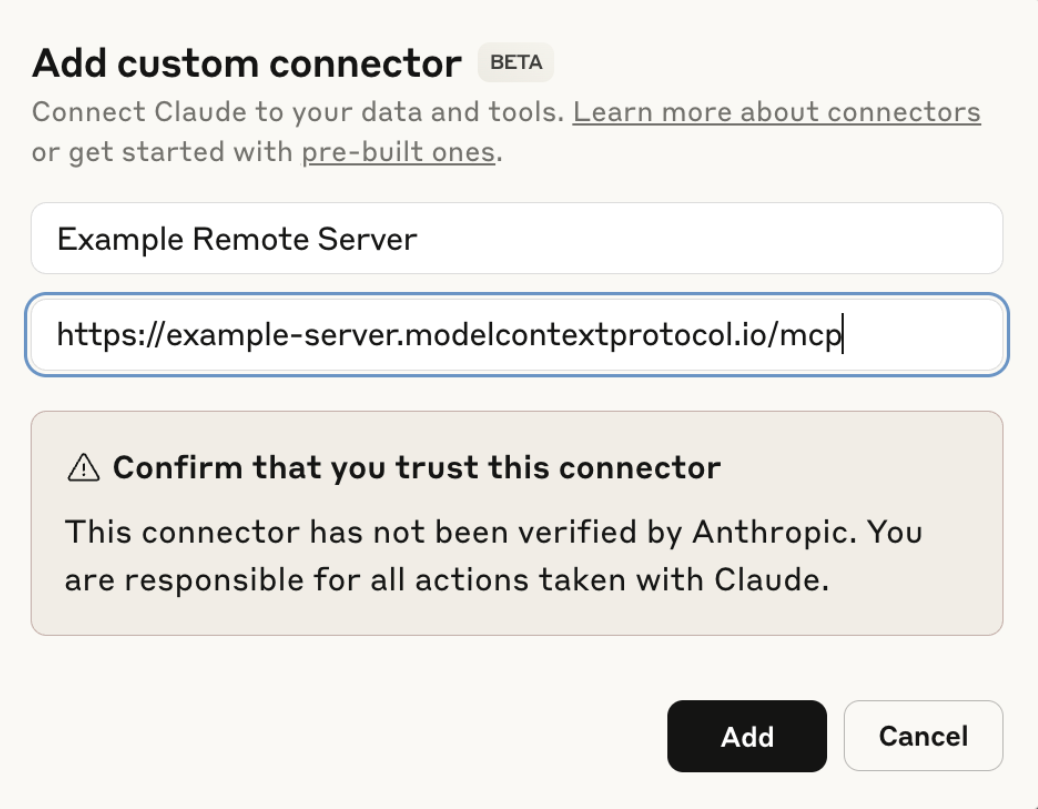

Example Remote Server
Complete Authentication
Most remote MCP servers require authentication to ensure secure access to their resources. The authentication process varies depending on the server implementation but commonly involves OAuth, API keys, or username/password combinations.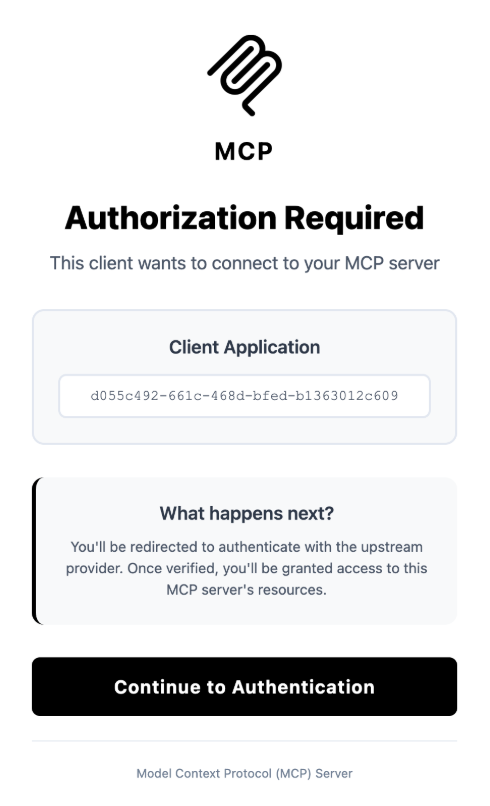
Access Resources and Prompts
After successful connection, the remote server’s resources and prompts become available in your Claude conversations. You can access these by clicking the “Add files, connectors, and more /” indicator  in the bottom-left corner of the message input area. Then hover over “Connectors”, move the cursor over “Add to Example Remote Server”, where hovering displays the attachment menu.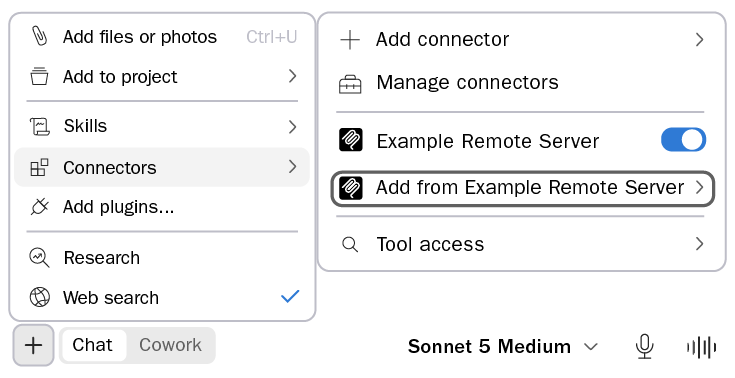
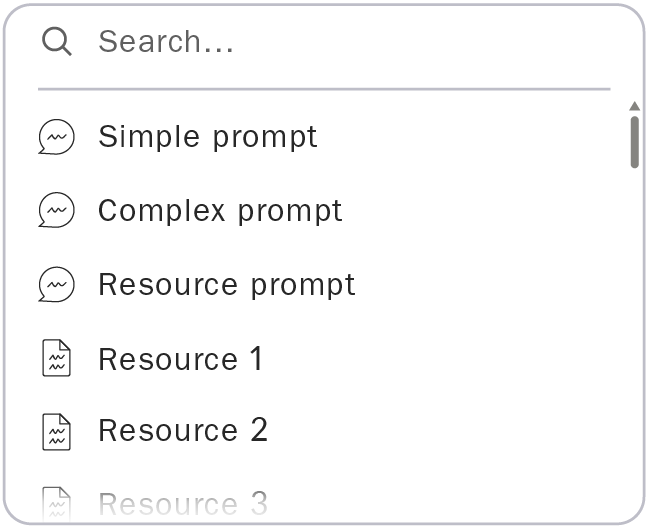
in the bottom-left corner of the message input area. Then hover over “Connectors”, move the cursor over “Add to Example Remote Server”, where hovering displays the attachment menu.Configure Tool Permissions
Remote MCP servers often expose multiple tools with varying capabilities. You can control which tools Claude is allowed to use by configuring permissions in the connector settings. This ensures Claude only performs actions you’ve explicitly authorized.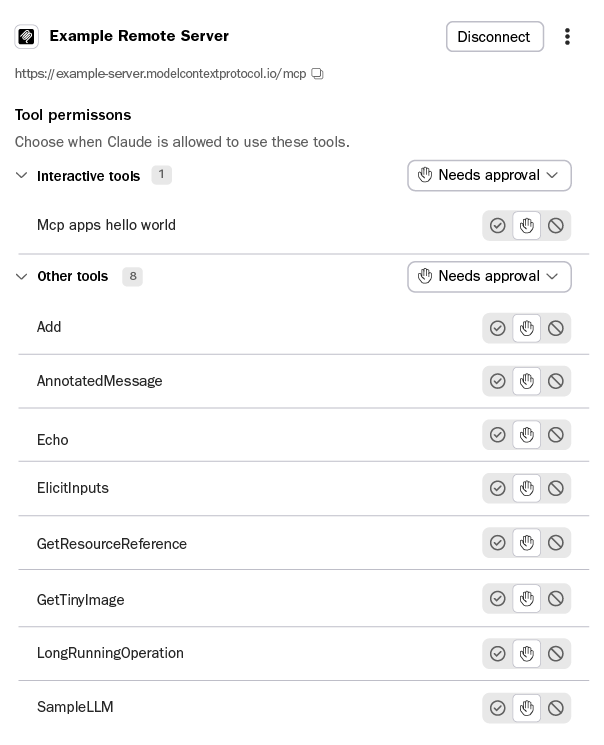
Best Practices for Using Remote MCP Servers
When working with remote MCP servers, consider these recommendations to ensure a secure and efficient experience: Security considerations: Always verify the authenticity of remote MCP servers before connecting. Only connect to servers from trusted sources, and review the permissions requested during authentication. Be cautious about granting access to sensitive data or systems. Managing multiple connectors: You can connect to multiple remote MCP servers simultaneously. Organize your connectors by purpose or project to maintain clarity. Regularly review and remove connectors you no longer use to keep your workspace organized and secure.Next Steps
Now that you’ve connected Claude to a remote MCP server, you can explore its capabilities in your conversations. Try using the connected tools to automate tasks, access external data, or integrate with your existing workflows.Build your own remote server
Create custom remote MCP servers to integrate with proprietary tools and
services
Explore available servers
Browse our collection of official and community-created MCP servers
Connect local servers
Learn how to connect Claude Desktop to local MCP servers for direct system
access
Understand the architecture
Dive deeper into how MCP works and its architecture